

Reputation+


Every negative review sitting unanswered on your Google Play listing is a missed opportunity, and potentially a lost user. Research from Google shows that responding to a negative review can increase that rating by an average of +0.7 stars, which adds up fast when thousands of people are deciding whether to download your app.
This guide covers how to access, analyze, and respond to Google Play reviews, along with best practices for handling feedback at scale and tools that can help you turn user comments into a competitive advantage.
What is Google Play Store review management
Google Play Store review management is the process of monitoring, analyzing, and responding to user reviews inside Google Play Console. It includes tracking new and updated feedback, replying consistently to both positive and negative reviews, and using review trends to identify bugs, usability issues, and feature requests.
Done well, it is more than customer support. It is an ongoing system that protects your star rating, strengthens trust in your store listing, and turns recurring complaints into product improvements that reduce future negative reviews.
Why Google Play Store ratings and reviews matter for your brand
Your app's star rating is often the first thing someone sees before deciding whether to download. A higher rating signals quality, while a lower one raises doubts even if your app is excellent.
- Visibility in search results: Google's algorithm favors apps with higher ratings, so they tend to appear more prominently in Play Store searches and category rankings.
- User trust: When people see that developers respond to feedback, they're more likely to believe their own concerns will be addressed if something goes wrong.
- Direct product feedback: Reviews surface real-world issues such as crashes on specific devices, confusing onboarding flows, and missing features, which internal testing often misses.
For apps with significant download volume, even a 0.1-star improvement can translate into thousands of additional installs over time.
How to access and view Google Play Store reviews in Play Console
The Google Play Console is where you manage everything related to your app, including user feedback. Here's how to find what you're looking for.
View your app ratings overview
To see your current rating and how it's changed over time, navigate to Quality > Ratings and reviews > Ratings. This dashboard shows your rating distribution across star levels and highlights how recent updates have affected user perception.
Browse individual Play Store reviews
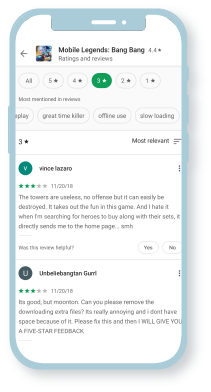
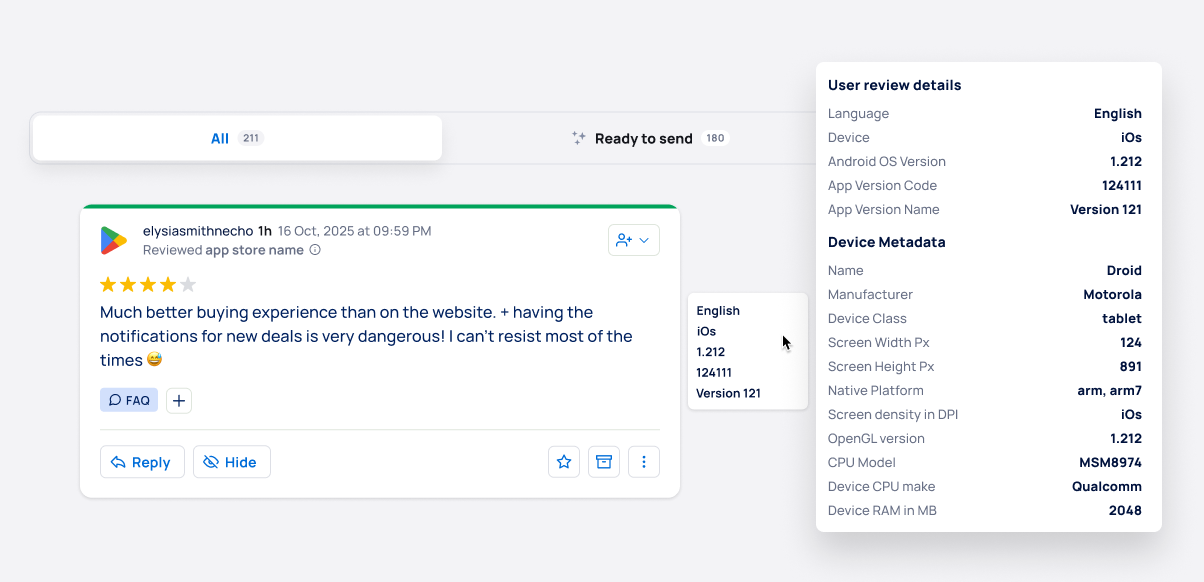
The Reviews tab displays each comment users have left. You'll see the star rating, timestamp, device type, Android version, and the written feedback itself. Scrolling through these gives you a qualitative sense of what's working and what isn't.
Filter reviews by rating, date, and language
Filters help you focus on what matters most right now. You might filter for 1-star reviews to tackle urgent issues, or filter by language to understand feedback from a specific market. The Play Console also lets you filter by device type, which is helpful when troubleshooting bugs that only affect certain hardware.
Set up notifications for new reviews
Timely responses matter, so enabling email notifications ensures your team knows when new reviews come in. For apps with high volume, daily digest emails keep you informed without flooding your inbox.
How to analyze Google Play ratings and reviews
Reading individual reviews is valuable, but patterns tell a bigger story. Analysis helps you move from reacting to problems toward preventing them.
Track your Play Store rating over time
The Ratings page includes charts showing how your rating has shifted. Look for correlations between rating dips and specific app releases. This can help you identify which updates introduced problems and which ones users appreciated.
Benchmark your ratings against competitors
Play Console offers a peer benchmarking feature that compares your app's rating to similar apps in your category. If you're below the benchmark, it's a signal that users expect more from apps like yours.
Identify themes in Google Play Store comments
Group feedback by topic: crashes, slow performance, missing features, billing issues, and so on. When the same complaint recurs, it's a clear signal for your product team to prioritize a fix.
Scrape Google Play Store reviews for deeper analysis
For apps with thousands of reviews, manual analysis becomes impractical. You can export reviews from Play Console or use third-party APIs to pull data into spreadsheets or analytics tools. From there, sentiment analysis and keyword clustering can surface insights that would take hours to find manually.
How to respond to Google Play reviews
Responding to reviews is one of the most direct ways to improve user perception. A thoughtful reply can turn a frustrated user into a loyal one, and often prompts them to update their rating.
1. Locate the review in Play Console
Find the review you want to address under the Reviews tab. You can reply directly from this interface without leaving the console.
2. Draft a helpful response
Acknowledge the user's concern first, then provide a clear answer or next step. Avoid generic responses; users can tell when they're getting a copy-paste reply.
Here's an example of a helpful response:
"Thanks for flagging this, and we're sorry the app crashed during checkout. We fixed the issue with a new version. Please update your app when you can, and if it happens again, reach out at [support email] so we can help right away."
3. Follow Google comment policies
Google prohibits certain types of responses, including promotional content, requests to change ratings in exchange for rewards, and personal attacks. Keep your replies professional and focused on resolving the issue.
4. Publish and track your reply
After publishing, monitor whether the user updates their review. The Play Console shows the status of your response and any subsequent changes to the original rating.
Best practices for managing Play Store reviews at scale
When you're handling hundreds or thousands of reviews, efficiency becomes critical. Here's how teams maintain quality without burning out.
Respond to reviews promptly
Aim to respond within 72 hours. Faster responses signal active support and increase the likelihood that users will see your reply while the issue is still fresh in their minds.
Maintain consistent brand voice
Create response templates or guidelines so everyone on your team sounds like the same brand. This is especially important when multiple people handle reviews across different shifts or time zones.
Prioritize negative reviews for quick resolution
Low-star reviews have the greatest impact on your overall rating. Address them first to minimize damage and begin recovering user trust before the negative sentiment spreads.
Use sentiment analysis to detect trends
Automated sentiment tools can flag sudden shifts in tone across your reviews. This early warning system helps you catch emerging issues before they escalate. Platforms like BrandBastion offer AI-powered sentiment analysis that works across both app reviews and social media channels, giving you a unified view of how users feel about your brand.
Connect reviews to product feedback loops
Create a process to route recurring complaints directly to your product or engineering teams. Reviews are a direct line to user needs—don't let that signal get lost in a spreadsheet no one checks.
How to handle negative Play Store reviews
Negative reviews are inevitable. How you respond determines whether they become lasting damage or opportunities to demonstrate great support.
1. Acknowledge the user's concern
Start by validating the user's frustration. Even if you disagree with their assessment, dismissing their feedback will only make things worse and may prompt them to share their negative experience elsewhere.
2. Offer a clear solution or next step
Provide specific guidance: a known fix, a workaround, or a link to your support resources. Vague responses like "we're looking into it" rarely satisfy users who took the time to write a detailed complaint.
3. Move sensitive issues to private channels
For billing disputes, account problems, or anything requiring personal information, invite the user to contact your support team directly. Public review threads aren't the place for sensitive conversations.
4. Follow up after resolution
If you fix the issue in a later update, reply to the original review to let the user know. This follow-up often prompts users to revise their rating—and shows other potential users that you actually act on feedback.
Can you delete or remove Google Play Store reviews
Developers cannot delete reviews themselves. However, you can flag reviews that violate Google's policies.
When Google will remove a review
Google removes reviews that contain spam, off-topic content, hate speech, or fake ratings designed to manipulate your app's score. Legitimate negative feedback—even if harsh—won't be removed simply because you disagree with it.
How to flag inappropriate or spam reviews
In the Play Console, click the flag icon next to a review to report it. Google's team will review your report and decide whether the review violates their policies. This process can take several days, and there's no guarantee of removal.
Why you avoid buying Google Play ratings
Purchasing fake reviews violates Google's developer policies and can result in app suspension. Beyond the policy risk, fake reviews erode user trust when they're discovered—and users are increasingly good at spotting them.
Turn Google Play reviews into a competitive advantage
Reviews aren't just feedback—they're a public conversation about your brand. When you respond thoughtfully and consistently, you demonstrate that real people stand behind your product.
The most effective teams treat review management as part of their broader customer engagement approach. They use the same voice, the same response standards, and the same sentiment monitoring across app stores and social media. Platforms like BrandBastion help unify this approach, ensuring consistent quality whether a user leaves feedback on Google Play, Facebook, or TikTok.